


Like most social media platforms, LinkedIn caches a lot of the content, especially the featured image which is the primary image that shows up on a link share. They will store the cache for up to a week. If you ever change that image, say during the initial editing / publishing process (it happens to us often) then you’ll want to make sure that the most current image is available. This article shows you how to clear / update LinkedIn’s image cache.
Unlike facebook, which has a “debugger” (aka / formerly “lint”) which allows you to force/update/check what Facebook is going to show when a link is shared, LinkedIn has no such tool. Therefore you have to trick the platform into thinking that there is a new post.
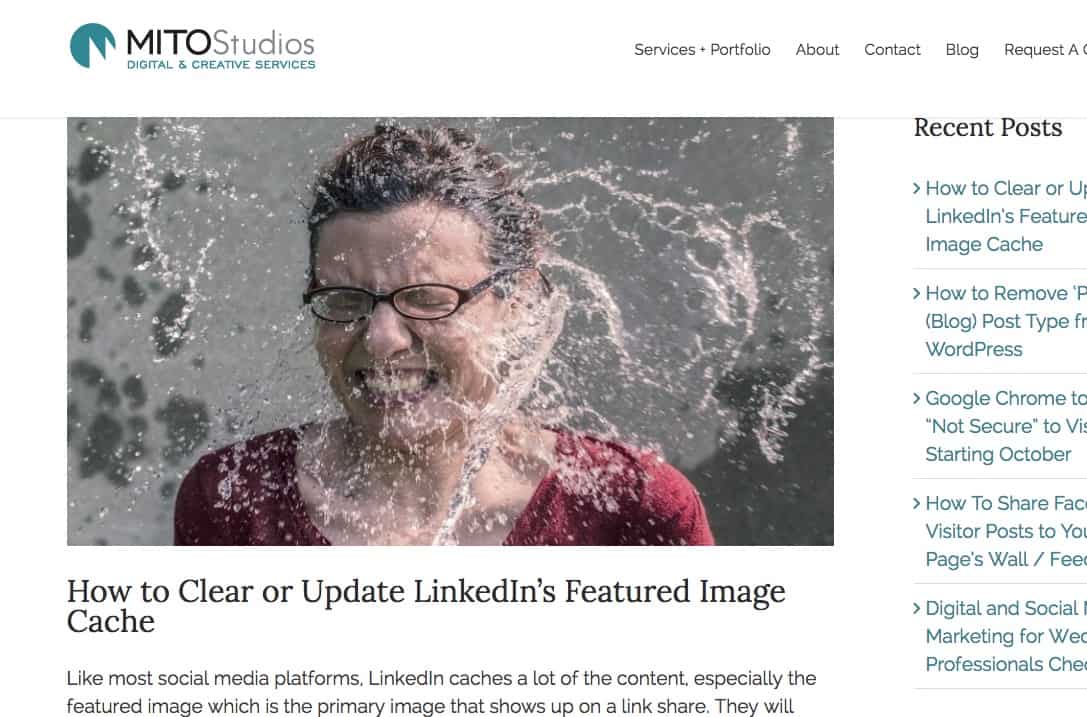
Incorrect featured image used on blog post.
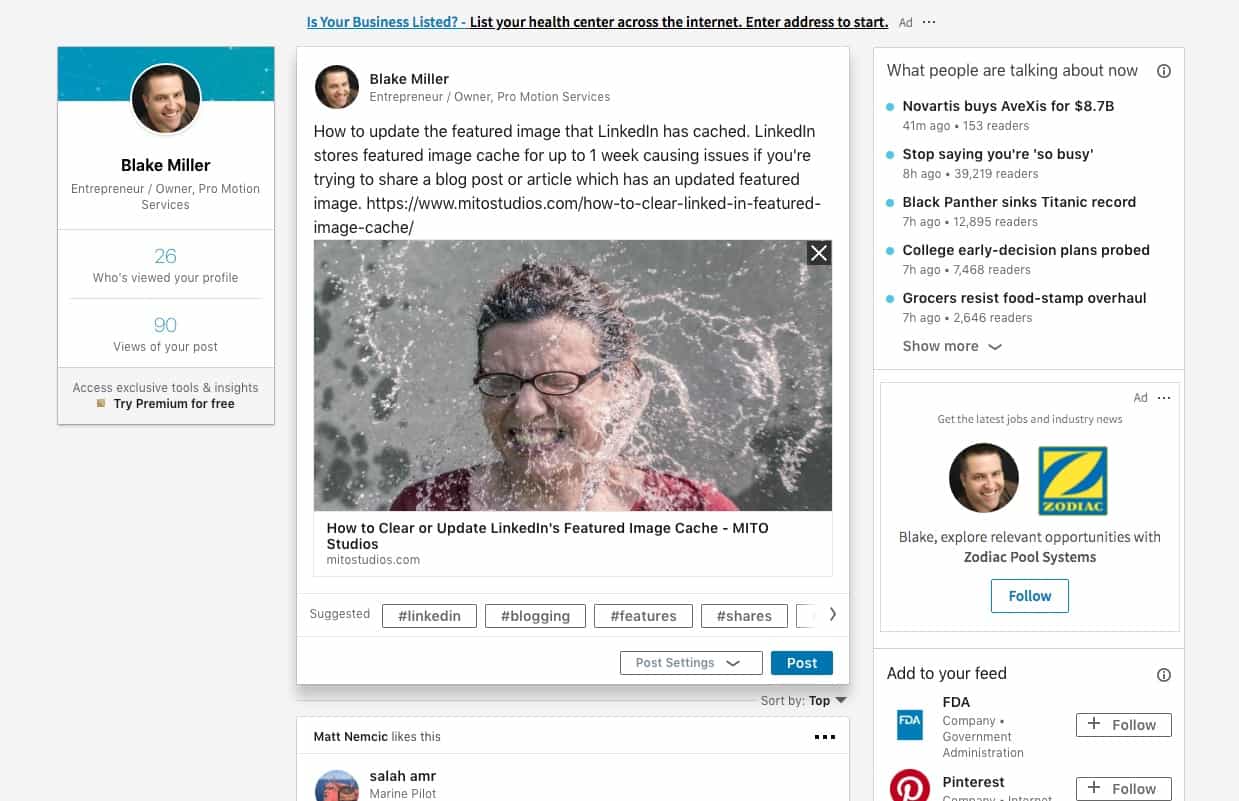
LinkedIn properly shows the image.
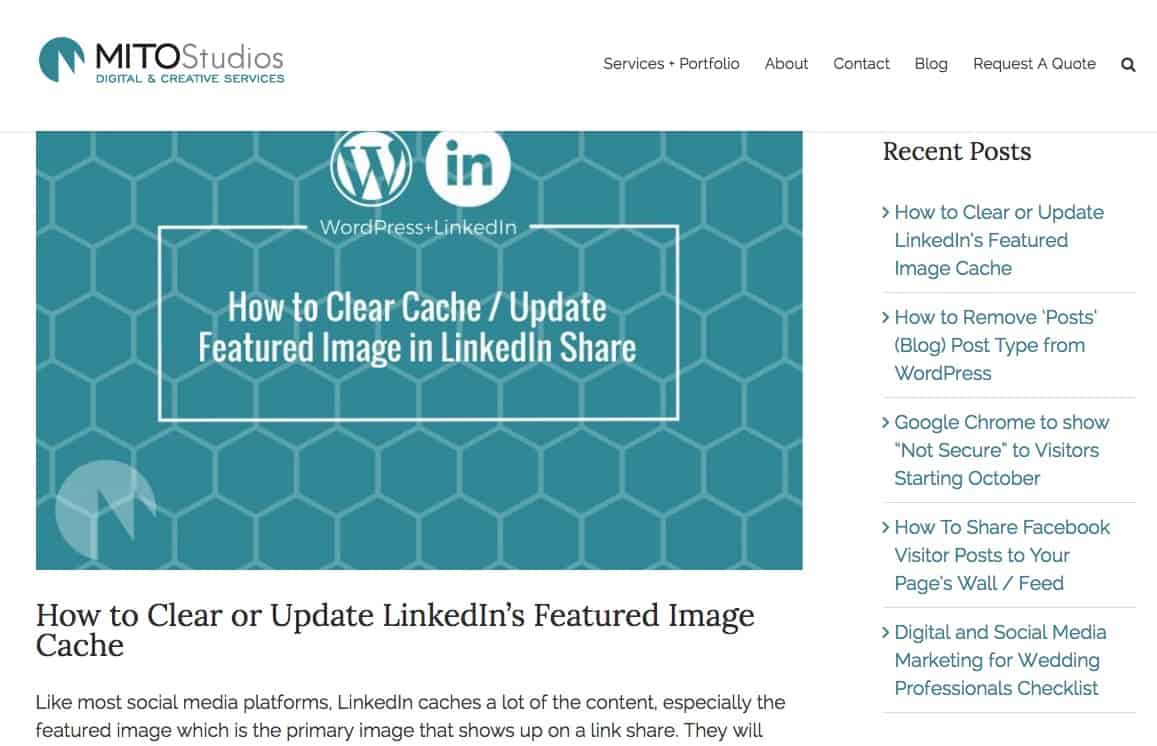
Updated Featured Image on Blog Post
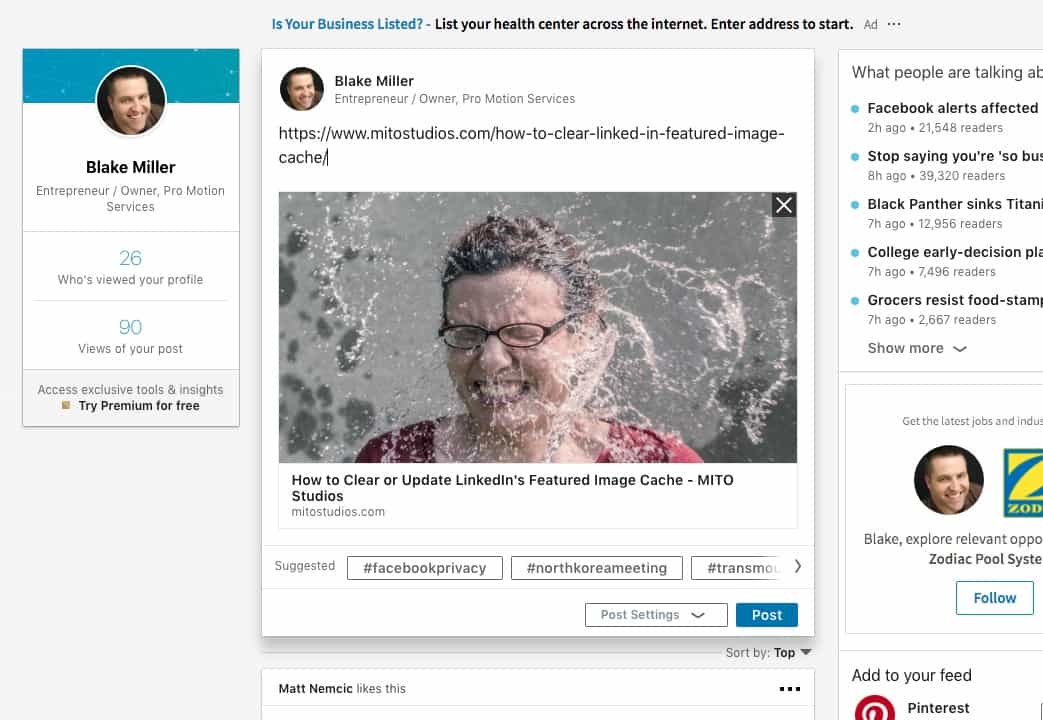
However, LinkedIn still shows the old / cached image.
Trick LinkedIn to Thinking it’s a New Post
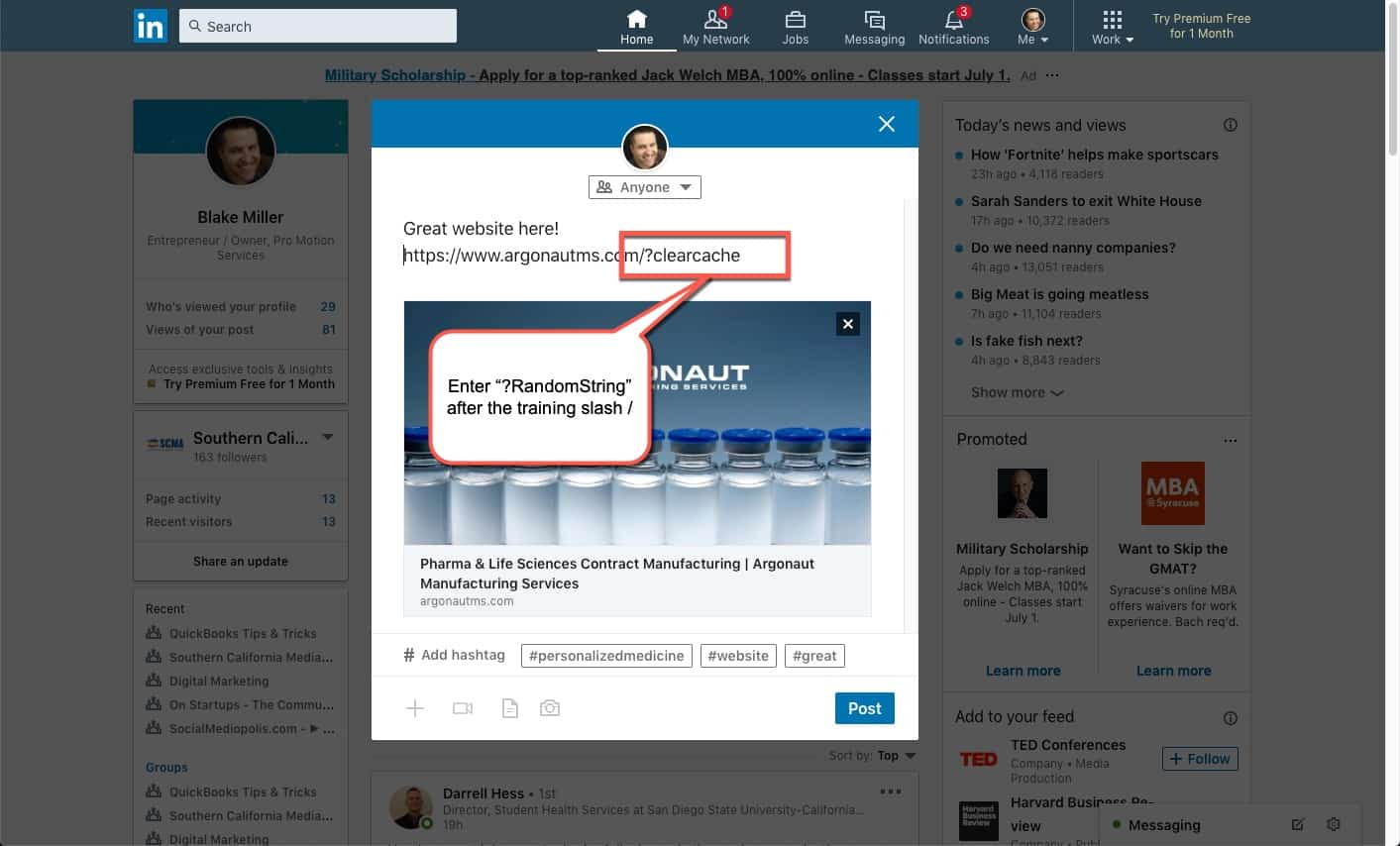
The trick is rather simple. Simply amend a fake parameter to the URL. Parameters are preceded with an & sign, so you can easily use &LinkedIn or &1 or &whatever
https://www.mitostudios.com/how-to-clear-linked-in-featured-image-cache/
Try something like
https://www.mitostudios.com/how-to-clear-linked-in-featured-image-cache/?LinkedIn
or
https://www.mitostudios.com/how-to-clear-linked-in-featured-image-cache/?1
or
https://www.mitostudios.com/how-to-clear-linked-in-featured-image-cache/?WhateverYouWantHere
LinkedIn technically sees that url as a new post, so it will scrape it fresh and store the (updated) content in it’s cache.
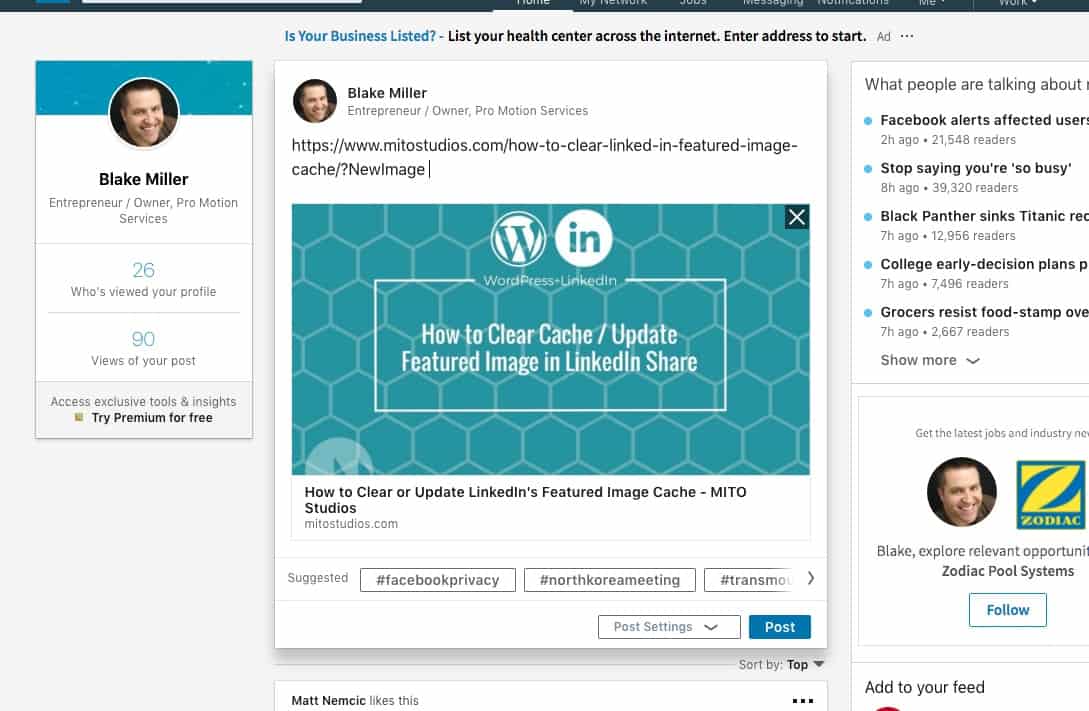
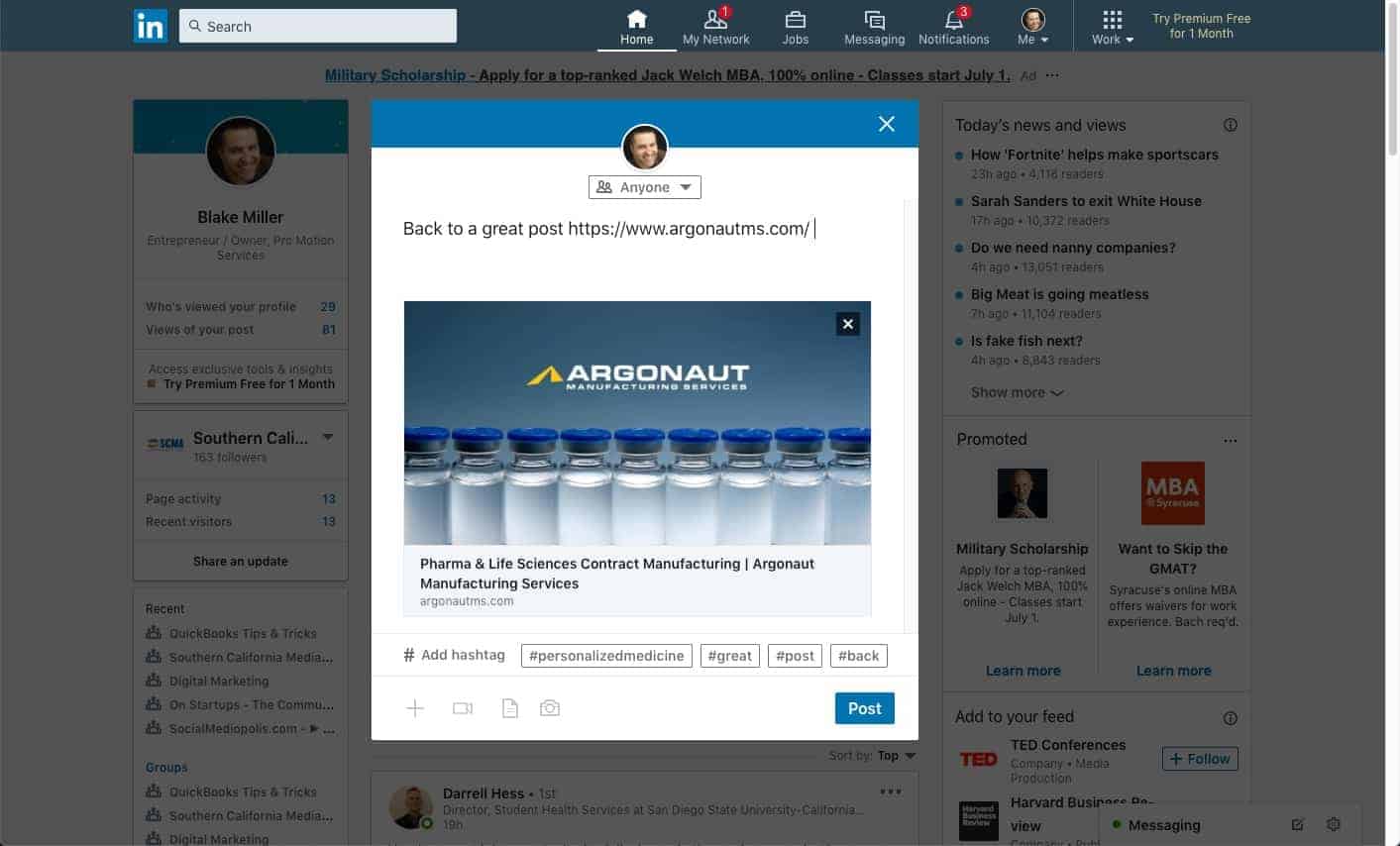
With a new Trick URL, LinkedIn re-scrapes the image and pulls in the correct post.
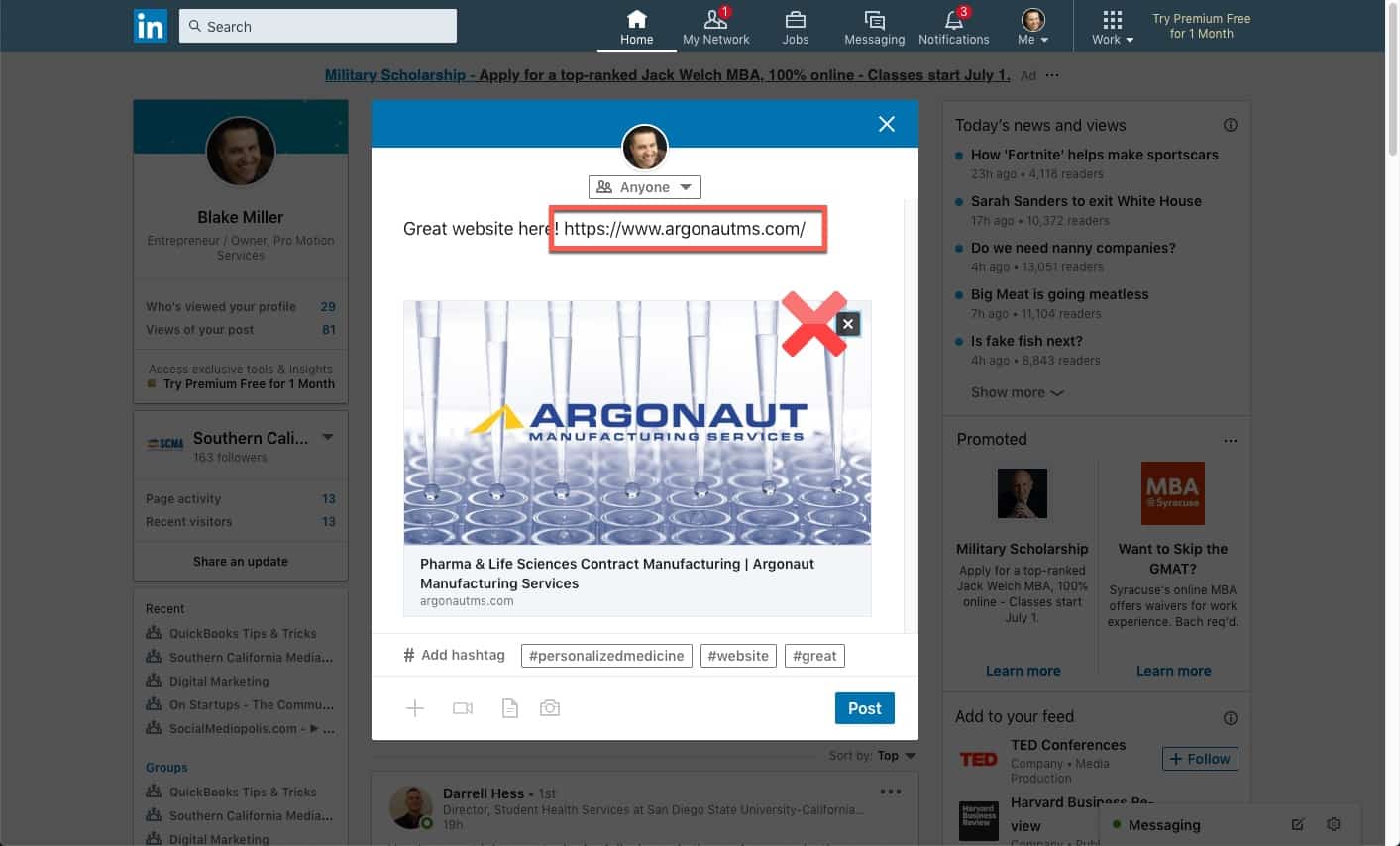
Here is another Before and After.

GAME CHANGER! Thanks so much!
This did not work for me. I tried both ? and &. What am I doing wrong?
Looks like it’s not possible to do once the post is out (?). Only during the editing process? I wasn’t able to change it after it’s out and thought it might be because I was also sponsoring it, but I archived the ads and fetched new content to advertise—didn’t help.
Another way I’ve tried is to use LinkedIn’s Post Inspector Tool. When you paste the URL there and Inspect it again, then return to repost, the latest image will be used.
UPDATE: LinkedIn has a “debugger” tool now. You can refresh any URL here https://www.linkedin.com/post-inspector/
Great tip!
Beautiful solution!! Clever and simple. Love, love, love it! Thank you so much for posting
Thanks very much, it was very clear and solved the issue. Just a little note, in the text it’s written “Parameters are preceded with an & sign, so you can easily use &LinkedIn or &1 or &whatever” but the examples show later use ? (not &).
Having tried both i can confirm the latter worked (?).
thanks again
Thanks Blake! That works, and it’s quick and easy
You’re brilliant – I was tearing my hair out over this and am delaying replying to a major potential employer because my LI profile had the wrong images. Thank you SO much. I’d never have worked this out.